![AT Logo Transparent Bkgd.png]](https://learn.accessible-tech.com/hs-fs/hubfs/Logos/Accessible%20Tech%20Logos/AT%20Logo%20Transparent%20Bkgd.png?width=200&height=58&name=AT%20Logo%20Transparent%20Bkgd.png)
TippyTalker Mode
On the iPad, in the TippyTalker mode, the Owner can show the TippyTalker how to operate speech and messaging.
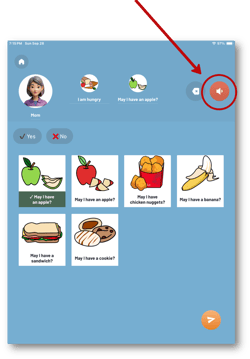
TippyTalk allows for speech generation, using the speech button. Once the message is created, tap the speaker button:
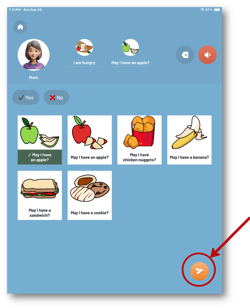
Or, use the Send button to send the message via text:
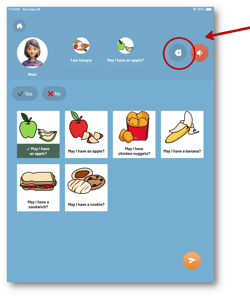
The back button allows the TippyTalker to erase the message and start over:
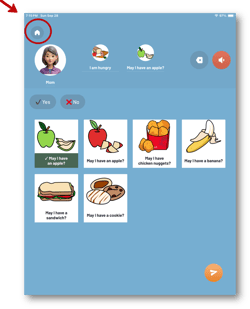
The Home button takes the TippyTalker back to the main screen:
Verbal user mode
You will know you are in Verbal User mode when you see your name on the home screen:
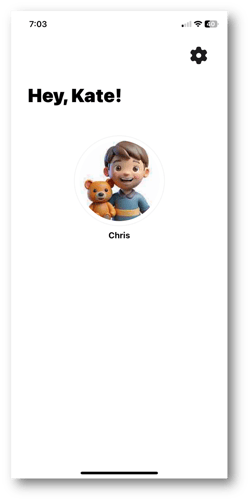
Access to settings for verbal users
From the Verbal User home screen, you can adjust settings in two ways.
1. To make changes to your own account, go to the gear icon.
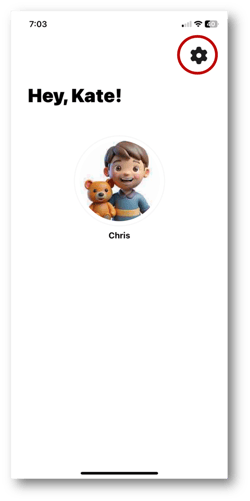
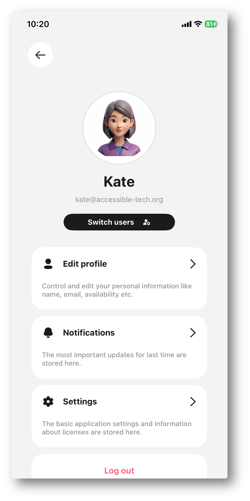
1.a. Here you can edit your profile:
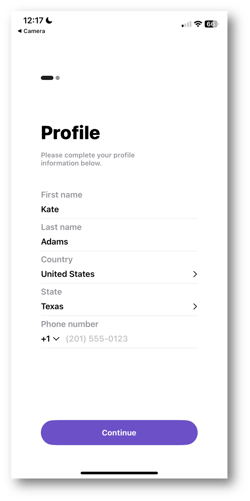
1.b. Or change personal settings, such as password and language for the app. You can also see app policies and terms here.
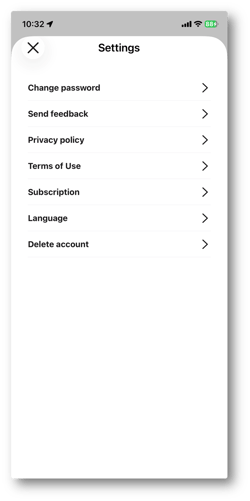
2. To make changes to the TippyTalker settings, click the icon in the upper right corner of your home screen:
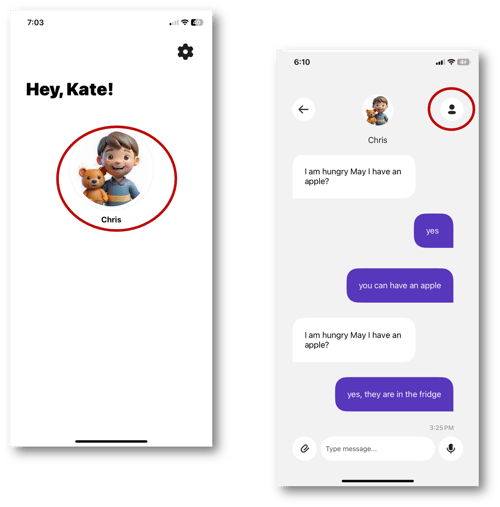
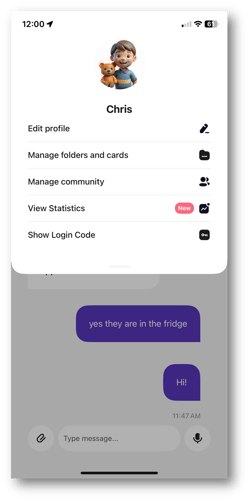
This will take you to a number of important settings, including:
- Profile of the TippyTalker
- Folders and cards
- Community
- Statistics
- See your login code for the iPad
The key to understanding navigation of settings:
- Gear symbol = settings for the owner, such as profile
- Person icon = settings for the TippyTalker's experience, such as cards and community