![AT Logo Transparent Bkgd.png]](https://learn.accessible-tech.com/hs-fs/hubfs/Logos/Accessible%20Tech%20Logos/AT%20Logo%20Transparent%20Bkgd.png?width=200&height=58&name=AT%20Logo%20Transparent%20Bkgd.png)
The TippyTalk app is continually being improved with new features, bug fixes, and performance enhancements. To ensure the best possible experience, it's important to keep both the app and your device's operating system up to date.
Updating your device software
Keeping your device's operating system current helps ensure TippyTalk runs smoothly. Here's how to check for and install software updates
iPhone or iPad:
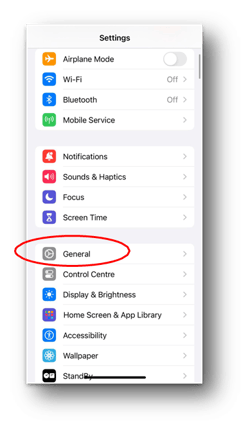
- Open Settings on your phone: Tap on the "Settings" app on your home screen.
- Go to General: Select "General" from the list of options.
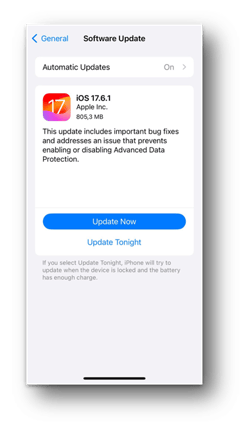
- Select Software Update: Tap on "Software Update."
- Check for updates: The iPhone will check for available updates. If an update is available, you can tap "Update Now" to begin the process.
Android
The steps to update Android software can vary depending on your device manufacturer.
-
Generally, you can find software updates under Settings > General Management > Software Update, or similar.
-
Refer to your device manufacturer's support page if you're unsure.
Make sure your device is connected to Wi-Fi and has sufficient battery life before starting the update.
Updating the TippyTalk App
On iPhone or iPad (App Store)
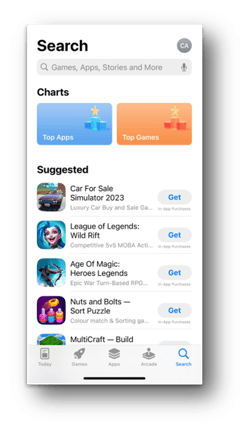
- Open the App Store.
- Tap your profile icon in the top-right corner.
- Scroll down to see a list of apps with available.
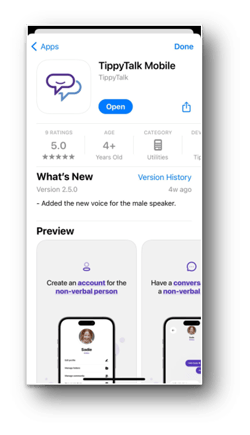
- Find the TippyTalk Mobile app and tap Update next to the TippyTalk app icon
On Android (Google Play):
- Open the Google Play Store.
- Tap your profile icon in the top-right corner.
- Tap "Manage apps & device".
- Find TippyTalk Mobile and tap "Update" next to the app icon.
Once the update is complete, you'll be running the latest version of TippyTalk and can continue using the app with all the newest improvements.