![AT Logo Transparent Bkgd.png]](https://learn.accessible-tech.com/hs-fs/hubfs/Logos/Accessible%20Tech%20Logos/AT%20Logo%20Transparent%20Bkgd.png?width=200&height=58&name=AT%20Logo%20Transparent%20Bkgd.png)
TippyTalk Signup
- A verbal user of the TippyTalk application registers with their email address on a smartphone. This individual is known as the Community Owner.
- They can later access their account from any compatible device using their email address and password.
- To sign up and get started with the basics, follow the instructions below or use the TippyTalk Initial Setup Guide and Quick User Guide.
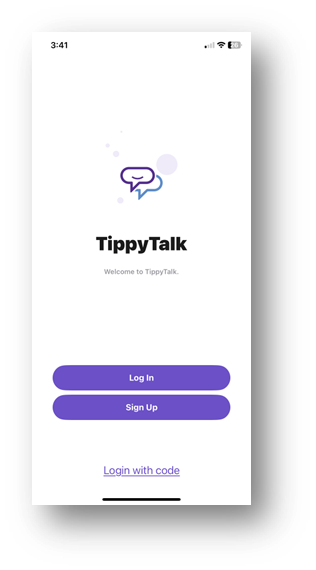
Check Your Email
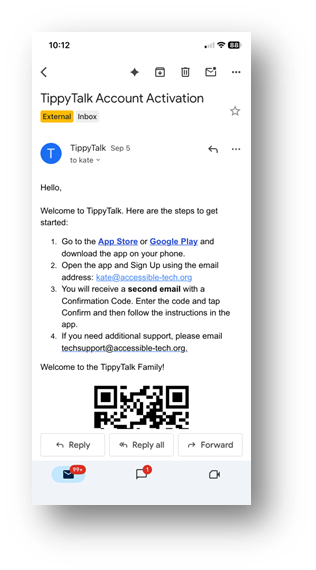
- Check your email on your phone for a notification from TippyTalk.
- This email indicates that your account is created and ready to go, and has instructions on how to proceed.
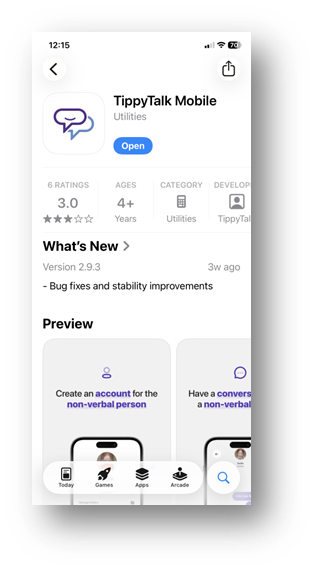
- Click the appropriate link to download and install the app from the Apple App Store or Google Play for Android.
Check Your Email First!
- Accessible Tech will create an account for you which will give you free access to the app.
- Make sure to WAIT for the notification from Accessible Tech that your account is created BEFORE trying to log in to the app.
- If you try to log in before your account is created, you may hit a paywall, where the app is asking for payment. This is because your email is not in the app record yet, and therefore it does not recognize you.
- If you have hit a paywall, do not make a payment. Please contact us by filling out the form on our contact page.
Sign Up
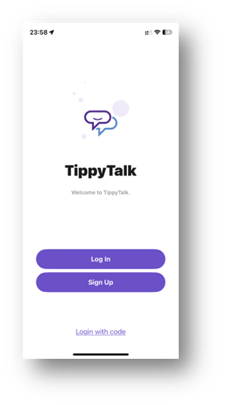
- After receiving the email from Accessible Tech and installing the app, open the app on your phone.
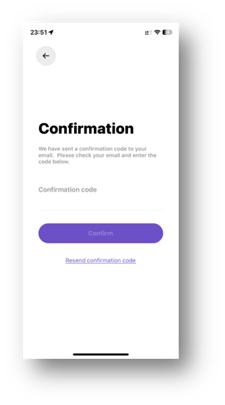
- Click SignUp and then enter your email address and create a password.
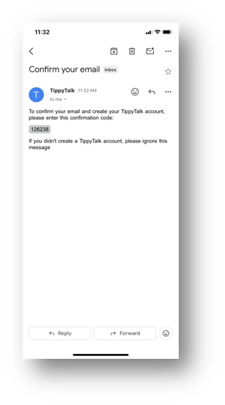
- Check your email.
- Go back to the app and enter the confirmation code.
Create a Profile of a TippyTalker
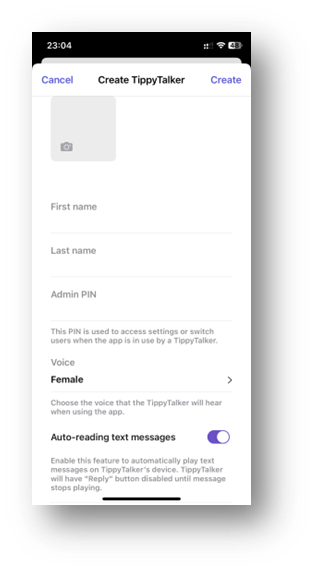
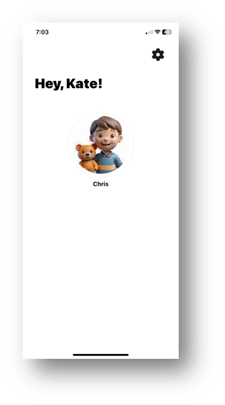
- A non-verbal user of the TippyTalk application, known as TippyTalker, does not register independently. Instead, their profile is created by the Community Owner during the initial setup in the app.
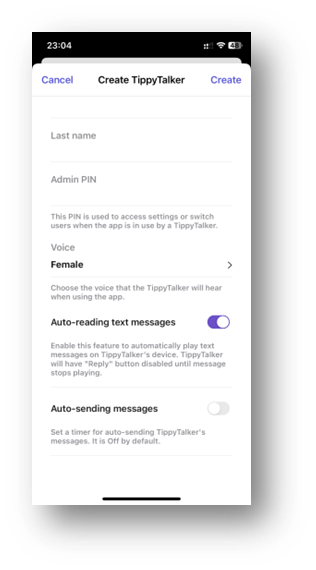
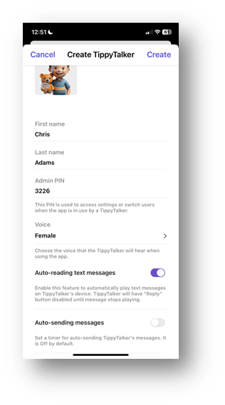
- Here, you can choose the app’s voice, set auto-reading of text messages, and enable auto-sending of messages.
Create the Owner PIN
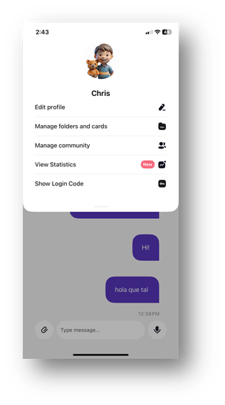
The Owner can view or change the PIN code from their mode in the TippyTalk phone app using the ‘Edit profile’ button in the TippyTalker’s management menu.
What is the Owner PIN Used For?
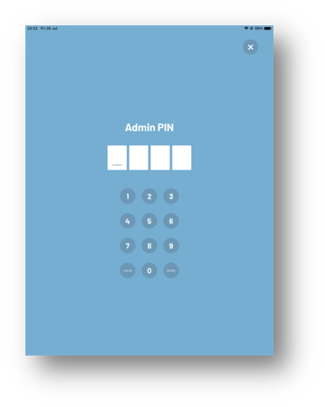
- On the iPad in TippyTalker mode, you can access the settings using a PIN code created by the Owner.
Note: See next section for setting up the iPad.
- From this menu, you can also log out of the TippyTalker’s account.
Note: A TippyTalker cannot make changes or log out of the account independently without knowing the PIN code set by the Owner.
Setting Up the iPad
First, download and install the app on the iPad.
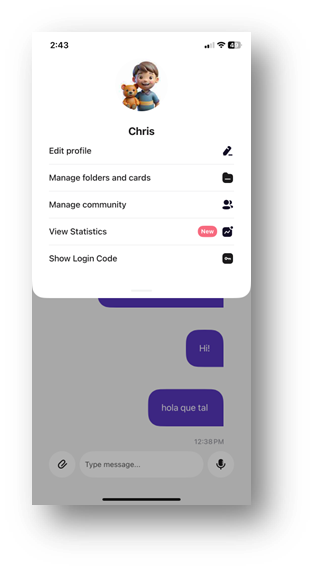
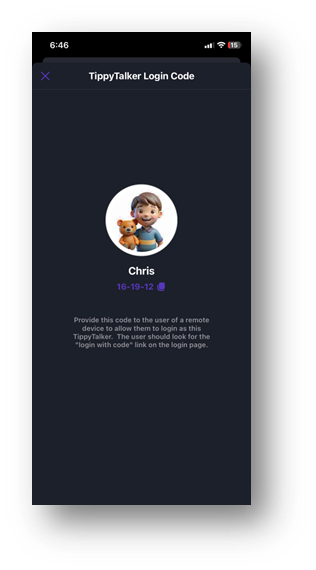
- On the phone, get the login code from the TippyTalker settings screen.
Phone Screens
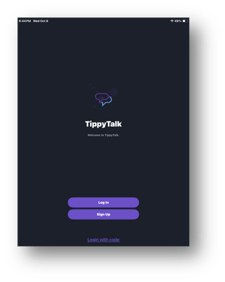
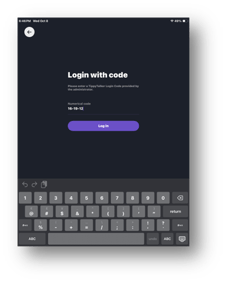
- On the iPad, tap Login with code at the bottom.
- Enter the code from the phone.
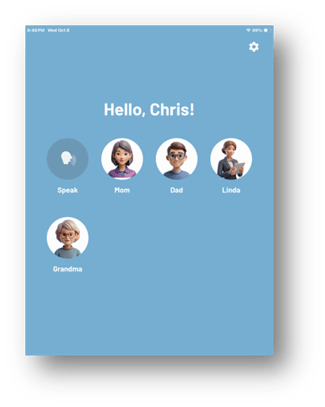
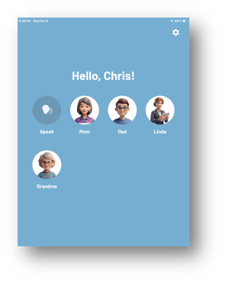
- You are now on the TippyTalker’s main screen.
iPad Screens
Get Started!
Now you have both the phone and the iPad set up and you are ready to communicate!