![AT Logo Transparent Bkgd.png]](https://learn.accessible-tech.com/hs-fs/hubfs/Logos/Accessible%20Tech%20Logos/AT%20Logo%20Transparent%20Bkgd.png?width=200&height=58&name=AT%20Logo%20Transparent%20Bkgd.png)
Messaging Basics
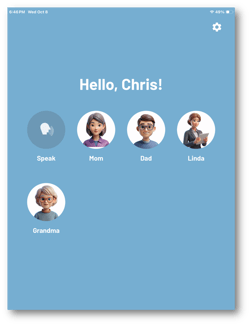
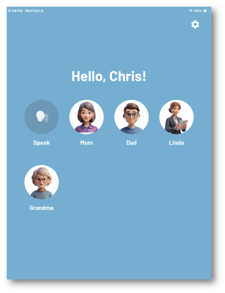
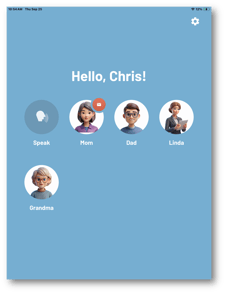
The TippyTalk first chooses the person they want to message:
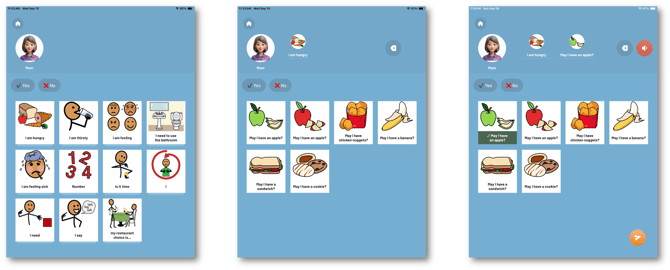
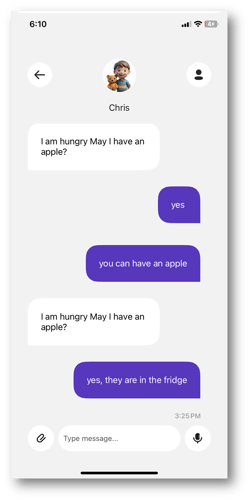
Then, a simple message can be creating by first selecting a category (folder) like "I am hungry." Then a more specific phrase is added from from the cards: "May I have an apple?"
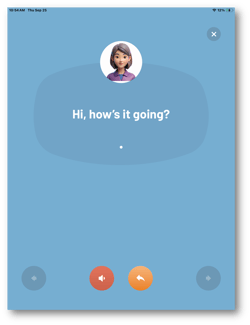
The recipient receives the message and can respond, including with media files. In this example, mom responds "Yes"
Chris, the TippyTalker sees that a message is received (the app will also vocalize this), and taps the Mom icon to hear the message:
Messages in Verbal User Mode
- A TippyTalker community participant can chat with the TippyTalker in their app. They can send:
- A text message, which will be spoken to the TippyTalker by the application;
- An audio message;
- Photo and video files.
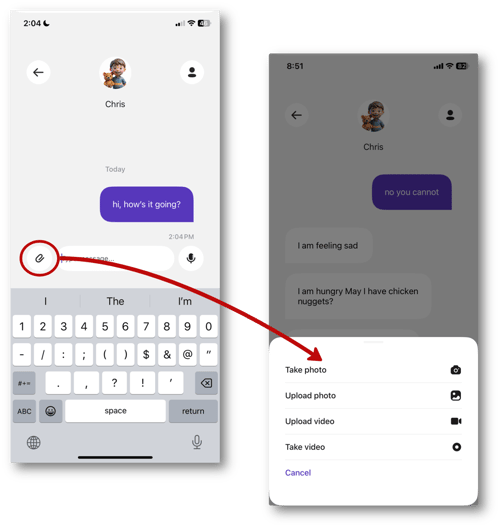
From the messaging screen, just select the attachment button to take or choose a photo or video to send.
Messages in TippyTalker Mode
- The TippyTalker can chat with community participants and choose the interlocutor from the main screen of the application.
- Text messages can be voiced multiple times using a red button. You can turn auto- reading of text messages on or off.
- The message history for the TippyTalker is not saved; messages disappear after closing. You can also configure auto-sending of messages.