![AT Logo Transparent Bkgd.png]](https://learn.accessible-tech.com/hs-fs/hubfs/Logos/Accessible%20Tech%20Logos/AT%20Logo%20Transparent%20Bkgd.png?width=200&height=58&name=AT%20Logo%20Transparent%20Bkgd.png)
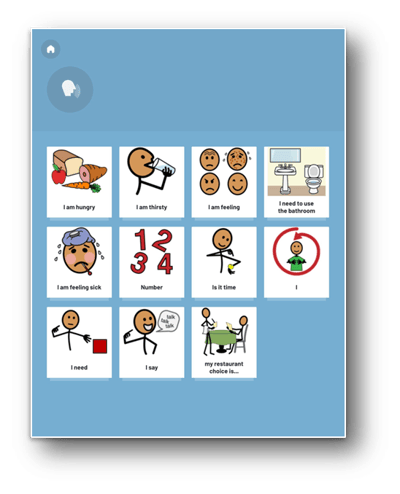
TippyTalk has customizable cards for the TippyTalker to communicate their thoughts. The cards are organized into folders, which are basically categories, such as "I am hungry." Cards and folders can be customized almost infinitely.
Default cards
- The structure of cards in the TippyTalk app is hierarchical, consisting of two levels: folders and cards.
- When creating a TippyTalker profile, a standard set of cards is automatically generated.
TippyTalker communication
Phrase construction in TippyTalk is a two-stage process:
- Folder: represents the need or topic of the phrase (e.g., 'I am hungry').
- Card: specifies the action, feeling, or subject within that topic (e.g., 'May I have an apple?').
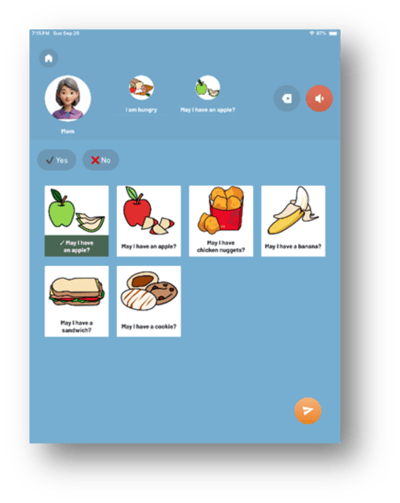
By combining these, a complete phrase is formed. The app then plays the selected phrase for the TippyTalker.
The TippyTalker chooses a folder - the need or the topic of the phrase:
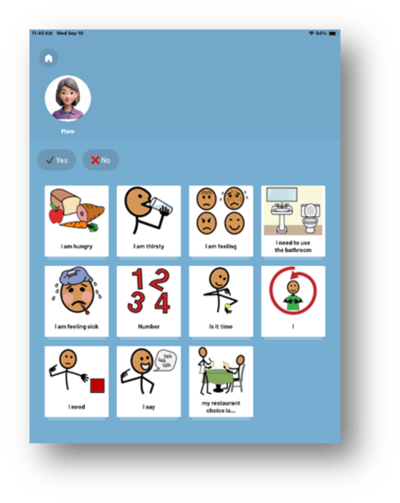
The TippyTalker chooses a card - an action / feeling / subject - within that topic:
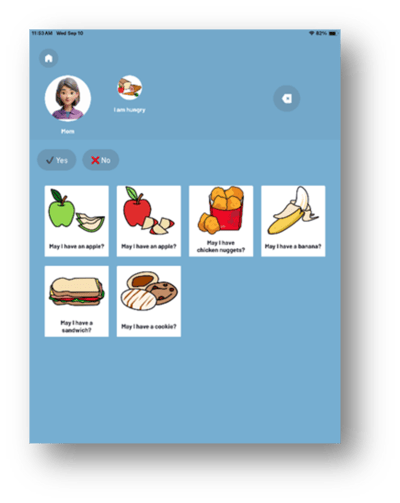
The TippyTalker receives the completed phrase:
Manage TippyTalker Folders and Cards
- All TippyTalker folders and cards are visible in the TippyTalk app to the Owner and Community Managers.
- To manage these folders and cards, select the TippyTalker’s profile on the home screen and then tap the button in the upper right corner. Then tap "Manage folders and cards"
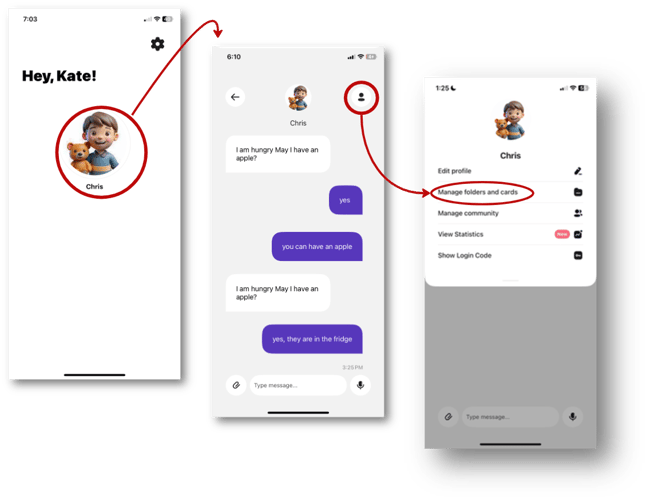
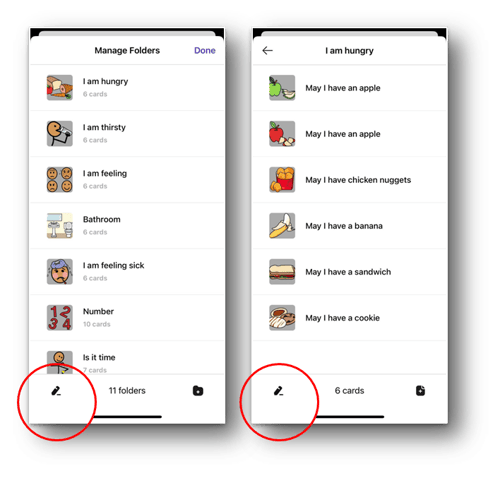
- The application uses a two-level structure, where each folder contains multiple cards. To open a folder, simply press on it.
- Any action you can perform on a folder can also be performed on a card.
- Use the button in the bottom left corner to edit folders or cards.
Edit TippyTalker folders and Cards
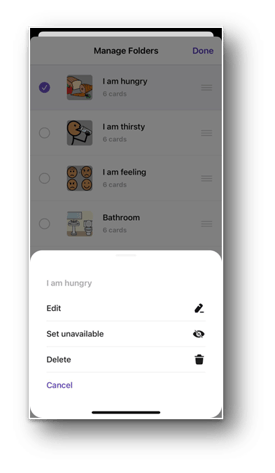
- After pressing the edit button, you can reorder items by dragging them using the three-line icon on the right.
- To select one or more items from the list, click on them, then press the ‘More’ button in the bottom right corner and choose an action to perform.
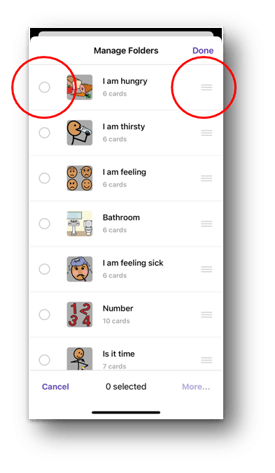
- You can edit, delete, or set any folder or card as unavailable.
- Setting an item as unavailable means it will be hidden from the TippyTalker’s view on the screen, but you can restore it at any time.
Manage TippyTalker Folders and Cards: Android
- On Android devices, these actions are slightly different.
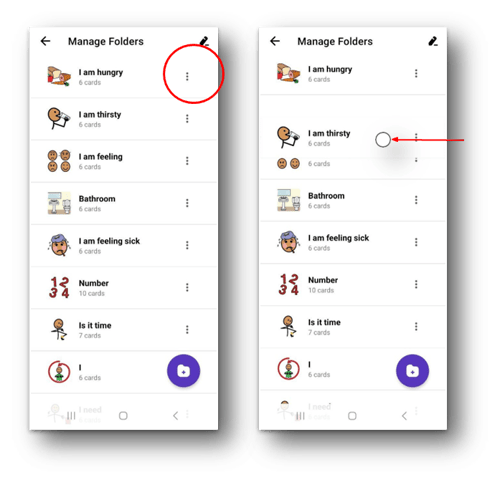
- To reorder an item, press any part of the line it’s in and drag it to the desired place.
- To make changes to a folder or a card, tap the three-dot icon to the right of the item you want to select, then choose the action.
Create TippyTalker folders and cards
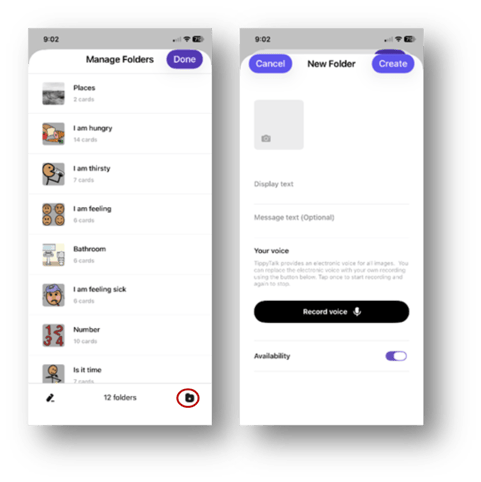
- Use the icon with a plus in the bottom right corner to create new item.
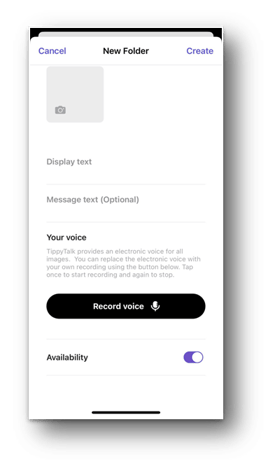
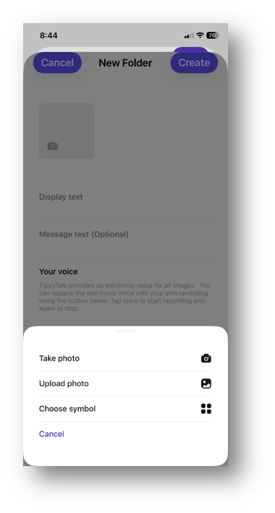
- Next, choose a picture by pressing on the square icon.
- You can add an image to a card or folder in the following ways:
- take a photo;
- upload photo from your phone;
- choose an illustration from the app's library.
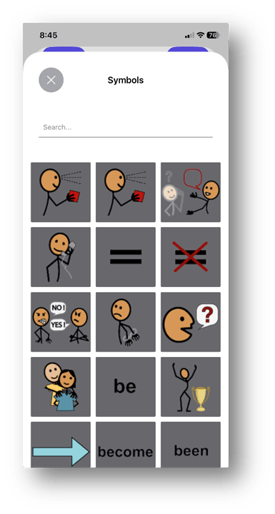
- TippyTalk includes a SymbolStix library with approximately 50,000 symbols.
- When selecting an image for a card or folder, you can search for symbols in the library using keywords in the search box.
- You need to create a name, or Display Text, for the item.
- The application can automatically voice the name, but you can also record your own voiceover.
- Once you’ve filled in all the details, press ‘Create’ in the upper right corner to save your new item.